How to Fix PC Overheating With a Liquid Cooler
A liquid cooler is supposed to keep your CPU running cool under heavy loads, but sometimes temperatures spike anyway. Whether you are gaming, rendering video, or running intensive workloads, an overheating PC with a liquid cooler can cause thermal throttling, sudden shutdowns, and even permanent hardware damage. The good news is that most liquid-cooling overheating problems stem from a handful of common, fixable causes. This guide walks you through each one step by step so you can diagnose the issue, apply the right fix, and get back to peak performance quickly.
Recognizing Overheating Symptoms
Before diving into fixes, confirm that overheating is actually the problem. Use a monitoring tool such as HWiNFO or Core Temp to check CPU temperatures. Healthy load temperatures for most modern CPUs sit between 60 and 80 degrees Celsius. If your chip regularly exceeds 90 degrees Celsius under load, or you see thermal throttling in your monitoring software, your liquid cooler is not performing as intended.
Common warning signs include unexpected shutdowns, a BIOS error message reading "CPU temperature error," and fans ramping to maximum speed shortly after boot. A rapid spike in temperature when stressing your CPU often points to a malfunctioning or non-working water pump.
Step 1: Reapply Thermal Paste
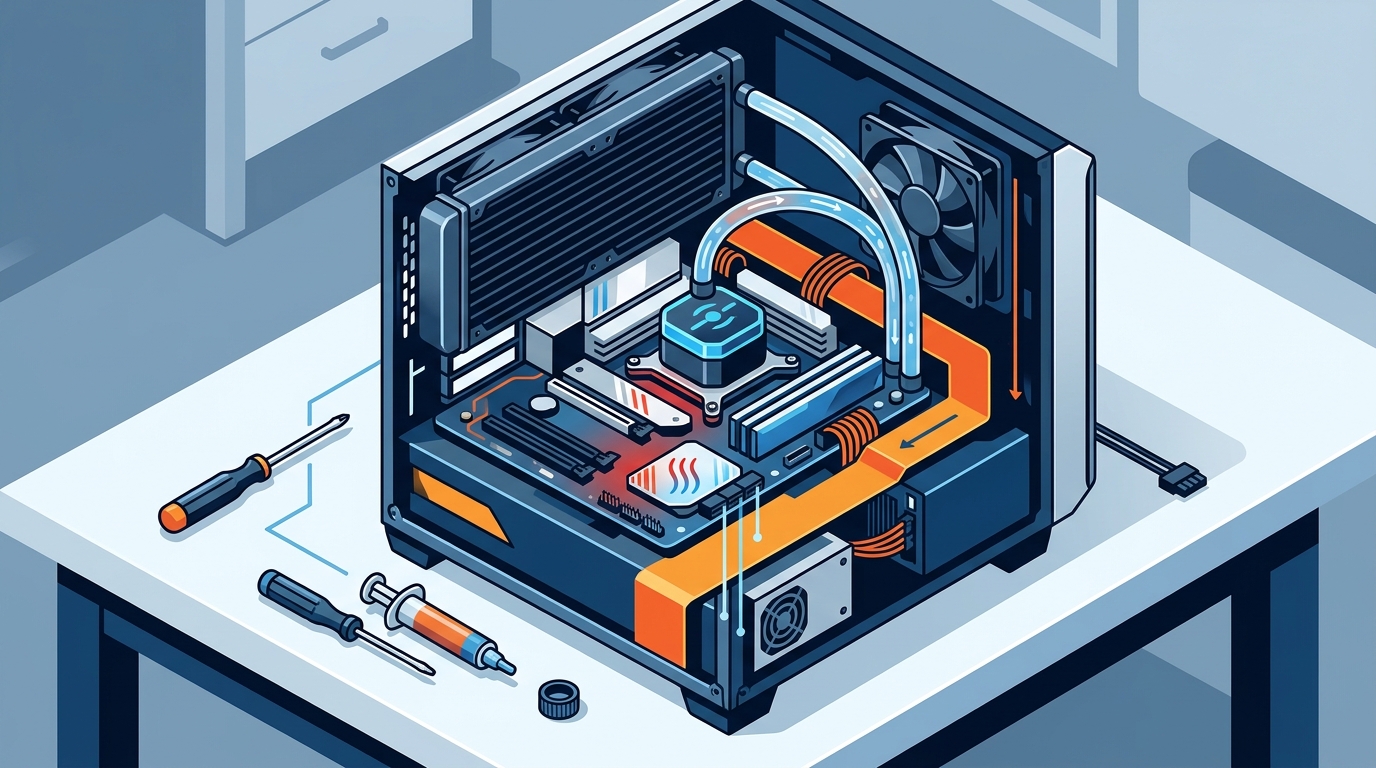
Thermal paste is a thermally conductive compound applied between the CPU and the cooler's cold plate to fill microscopic air gaps. Over time it dries out, cracks, and loses conductivity. Corsair recommends reapplying thermal paste every 12 to 18 months to maintain optimal heat transfer.
How to Reapply
- Power down your PC and disconnect power.
- Remove the AIO pump head from the CPU.
- Clean old paste from both surfaces with isopropyl alcohol (90% or higher) and a lint-free cloth.
- Apply a pea-sized dot of fresh thermal paste to the center of the CPU's integrated heat spreader (IHS).
- Remount the pump head evenly, tightening in a cross pattern.
A high-quality compound like ARCTIC MX-7 Premium Thermal Paste ensures excellent heat transfer and long-lasting stability. For precise, even application, the AAAwave Thermal Paste Spreader is a handy accessory that works with all paste types.
Step 2: Verify the Pump Is Working
The pump is the heart of any liquid cooling loop. A dead or failing pump means coolant is not circulating, and heat stays trapped at the cold plate. AIO pump failure is one of the most common reasons a liquid-cooled PC overheats.
Quick Diagnostic Checks
- Listen: Place your ear near the pump head. A faint hum or vibration is normal; complete silence suggests no pump spin.
- Touch test: Feel both tubes running from the pump to the radiator. One should be noticeably warmer than the other, indicating coolant flow.
- BIOS or software: Many motherboards report pump RPM on the header it is connected to. Zero RPM confirms a dead pump.
If the pump is not spinning, check that its power cable is firmly seated on the correct motherboard header (often labeled AIO_PUMP or W_PUMP). If connections are fine and the pump is still dead, the AIO likely needs replacement. Premium units like the Cooler Master MasterLiquid 360 ATMOS feature industrial-grade EPDM rubber for improved durability and leak prevention.
Step 3: Clean the Radiator and Fans
Dust buildup on radiator fins acts as an insulator that blocks heat dissipation. Even a thin layer of dust can raise coolant temperatures several degrees. Regular cleaning is one of the simplest and most effective maintenance tasks for any liquid-cooled PC.
Cleaning Steps
- Shut down and unplug the PC.
- Remove the radiator fans if possible for better access.
- Use short bursts of compressed air to blow dust out of the radiator fins. Work from the inside out to push debris away from the case.
- Wipe fan blades with a slightly damp microfiber cloth.
- Reinstall fans and reconnect cables.
Aim to clean your radiator every three to six months, or more often if your PC sits in a dusty environment.
Step 4: Bleed Air Bubbles From the Loop
Air bubbles are a frequent cause of overheating, especially after a new installation or if you have moved your PC. Trapped air reduces the volume of coolant contacting the cold plate and can cause the pump to cavitate, reducing flow rate.
To bleed air from an AIO, gently tilt and rotate the case in multiple directions while the pump is running. This lets bubbles migrate toward the radiator and away from the pump head. Mounting the radiator with tubes at the bottom (when top-mounted) or ensuring the pump head is not the highest point in the loop also minimizes air accumulation over time.
Step 5: Optimize Case Airflow
Case airflow is the movement of air through and out of a PC chassis, and poor airflow can undermine even the best liquid cooler. If your radiator cannot exhaust heat to fresh air, coolant temperatures rise steadily.
Airflow Best Practices
| Factor | Recommended Setup | Common Mistake |
|---|---|---|
| Front intake fans | 2 to 3 fans pulling cool air in | No intake fans; negative pressure |
| Radiator position | Top exhaust or front intake | Radiator blocked by GPU heat |
| Rear exhaust | At least 1 fan exhausting warm air | Rear slot empty or blocked |
| Cable management | Cables routed behind tray | Loose cables restricting airflow |
| Dust filters | Clean monthly | Filters caked with dust |
A well-ventilated case with proper fan placement makes a big difference. Browse high-performance case fans at AAAwave to add intake or exhaust capacity. If your chassis lacks room for a top-mounted radiator, consider upgrading to a mid-tower case with extensive radiator support from AAAwave's PC case collection.
Advanced Fixes and When to Replace Your AIO
If you have worked through every step above and temperatures remain dangerously high, consider these advanced scenarios:
Kinked or Damaged Tubing
Thin-walled tubing can collapse under tight bends or when pinched by a side panel. Inspect tubes for kinks that restrict coolant flow and reposition them if necessary.
Coolant Degradation (Custom Loops)
In custom liquid cooling loops, coolant can degrade over time, losing thermal conductivity and becoming corrosive. Flushing the loop with distilled water and refilling with fresh coolant every 6 to 12 months is recommended for custom setups.
AIO End of Life
Most sealed AIO coolers have an expected lifespan of roughly 5 to 7 years. Permeation slowly reduces coolant volume, and pump bearings wear out. If your AIO is several years old and none of the fixes above help, replacing it is the safest option. The ARCTIC Liquid Freezer III Pro 420 A-RGB is an excellent high-performance replacement with broad socket support and pre-applied MX-6 thermal paste.
Key Takeaways
- Monitor CPU temperatures with software like HWiNFO; anything consistently above 90 degrees Celsius under load signals a problem.
- Reapply thermal paste every 12 to 18 months to maintain heat transfer between the CPU and the cold plate.
- Confirm pump operation by listening for vibration, checking tube temperature differential, or reading pump RPM in BIOS.
- Clean radiator fins and fans every three to six months with compressed air to prevent dust insulation.
- Bleed air bubbles by tilting the case while the pump runs; keep the pump head below the top of the radiator.
- Optimize case airflow with a balanced intake-exhaust fan configuration and clean dust filters.
- Replace an aging AIO cooler if it is past its expected 5 to 7 year lifespan and no other fix resolves the issue.
Frequently Asked Questions
How do I know if my AIO pump has failed?
A failed pump usually shows zero RPM on the motherboard's pump header, no vibration from the pump housing, and a rapid temperature spike under even light CPU load. If both tubes running to the radiator feel the same temperature, coolant is likely not circulating.
Can I use any thermal paste with my liquid cooler?
Yes. Any non-conductive thermal paste works with an AIO cold plate. High-performance compounds like ARCTIC MX-6 or Thermal Grizzly Kryonaut deliver superior thermal conductivity and are safe for all processors.
How often should I clean my AIO radiator?
Every three to six months is a good baseline. Homes with pets or high dust levels may require more frequent cleaning. Use compressed air blown from the inside out for best results.
Does radiator placement affect cooling performance?
Absolutely. Top-mounting the radiator as exhaust prevents GPU heat from pre-warming the coolant. Front-mounting as intake provides the coolest ambient air to the radiator but can raise internal case temperatures. Choose based on your specific case layout.
Why is my brand-new AIO cooler overheating?
The most common reason is a protective plastic film left on the cold plate's copper contact surface. Remove it before installation. Also verify that the mounting hardware is properly tightened and that the pump power cable is connected.
Is liquid cooling better than air cooling for preventing overheating?
Liquid cooling generally offers better thermal performance for high-TDP processors and overclocked systems because it can move heat away from the CPU to a larger radiator surface area. However, a quality tower air cooler can rival a 240mm AIO in many scenarios.
Can air bubbles actually cause my PC to overheat?
Yes. Air pockets in the pump head or tubing reduce the volume of coolant in contact with the cold plate, decreasing heat absorption. Bubbles can also cause pump cavitation, reducing flow and increasing noise.
When should I replace my AIO cooler entirely?
If your AIO is more than five years old, the pump makes grinding noises, or coolant has visibly dropped below the minimum level in the loop, replacement is the safest course of action.
Upgrade Your Cooling Setup Today
Whether you need fresh thermal paste, replacement fans, or a brand-new AIO liquid cooler, AAAwave stocks top brands like ARCTIC, Cooler Master, and Corsair with fast US shipping. Shop cooling solutions at AAAwave and keep your PC running at peak performance.